A flickering laptop screen is distracting and worrying. It can look like a failing display, but it often turns out to be a driver, a refresh-rate setting, or a loose cable — all fixable without a new screen. Before you pay for a repair, spend twenty minutes narrowing down the cause. The tests below cost nothing, and they tell you — and any repair shop — exactly where the problem lives.
First, Find Out Where the Flicker Lives
Open Task Manager with Ctrl + Shift + Esc and watch the screen. If Task Manager itself flickers along with everything else, the problem is almost certainly the display driver or the screen hardware. If Task Manager stays steady while the rest of the screen flickers, an app is more likely to blame — often a third-party program that draws overlays or hooks into the display.
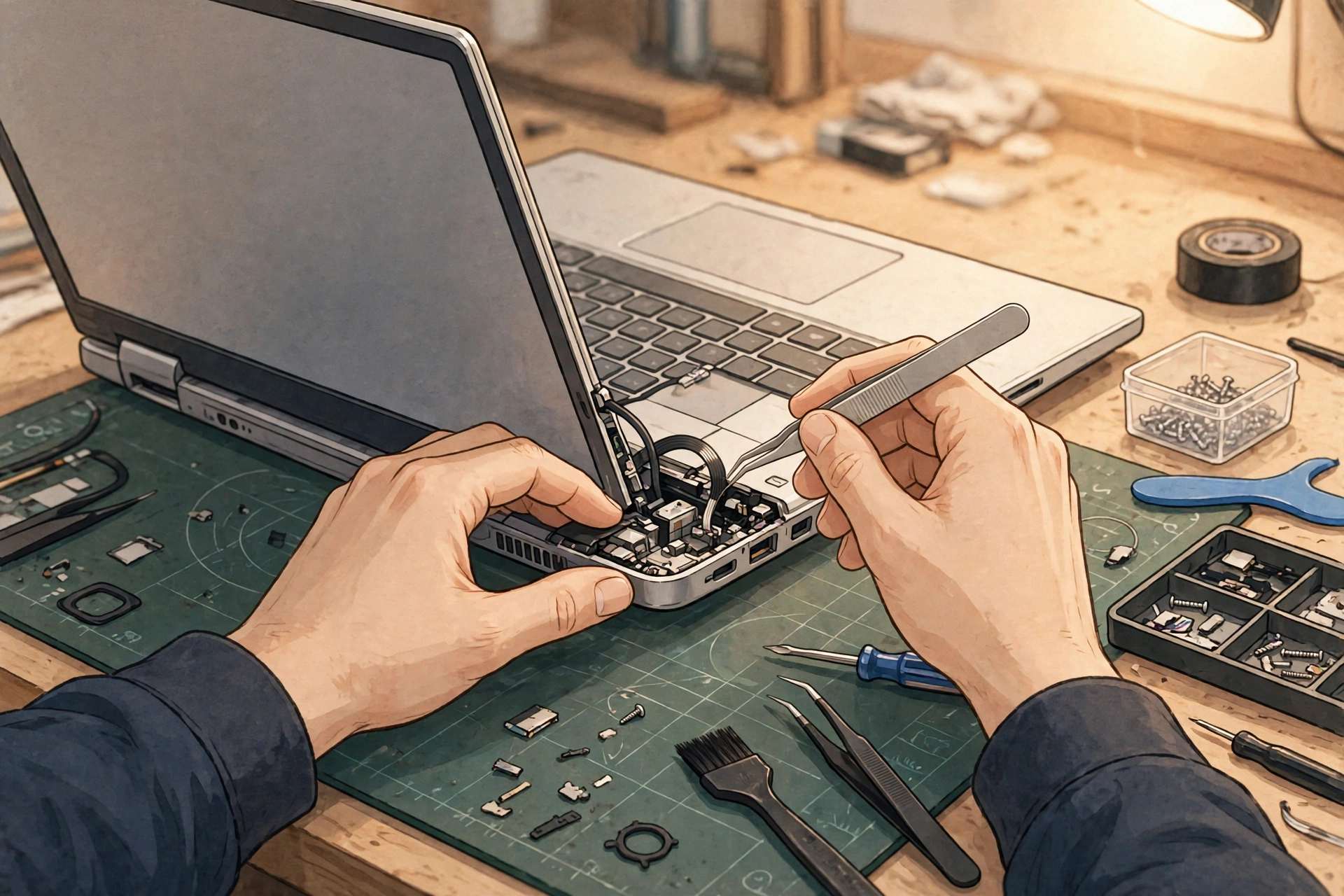
Next, check whether the flicker changes when you move the lid. Open and close the lid slowly through a few angles. If the flicker comes and goes with lid position, the cable running through the hinge is a prime suspect. That cable flexes every time you open the laptop, and after years of use it can wear or work loose. A cable reseat is a much cheaper repair than a screen replacement, so this observation alone can save you money.
Check the Easy Settings First
Two settings cause flicker more often than people expect. The first is the refresh rate: right-click the desktop, choose Display settings, then Advanced display, and look at the refresh rate. If it is set to something unusual for your panel, or if it recently changed after an update, set it back to the standard rate for your screen — usually 60 Hz. The second is adaptive brightness or variable refresh features in your graphics control panel; try turning them off temporarily and see if the flicker stops.
Also try an external monitor. Connect your laptop to a TV or monitor with an HDMI cable. If the external display is steady while the laptop screen flickers, the laptop panel or its cable is at fault. If both flicker, the graphics chip or driver is the more likely cause. This single test splits the problem in half and stops a repair shop from replacing parts blindly.
Update or Roll Back the Graphics Driver
Display drivers are the most common software cause of flicker, especially right after a Windows or driver update. Open Device Manager (right-click the Start button), expand Display adapters, right-click your graphics adapter, and choose Update driver. Let Windows search automatically first.
If the flicker started right after a driver update, roll back instead: in the same right-click menu, choose Properties, go to the Driver tab, and click Roll Back Driver if the button is available. Restart after either change and test for a few minutes before declaring victory — flicker can be intermittent, so give it time.
Rule Out a Troublesome App
If Task Manager stayed steady in the first test, an app is interfering. Think about what you installed or updated just before the flicker began — screen recorders, display tools, and some antivirus overlays are repeat offenders. Boot into Safe Mode (hold Shift while clicking Restart, then choose Troubleshoot > Advanced options > Startup Settings) and see if the flicker stops. In Safe Mode only essential drivers load, so a steady screen there points firmly at software. Uninstall the most recent suspect, restart normally, and retest.
What the Results Mean
Here is how to read what you found. Flicker that follows lid movement or appears only on the built-in screen points to the hinge cable or panel — a repair shop job, but ask them to check the cable first. Flicker on both screens, or flicker that a driver rollback fixes, is a software problem you have already solved. Flicker that appears in Safe Mode too, on a steady refresh rate, with an up-to-date driver, is most likely panel or graphics hardware, and that is when a professional diagnosis is worth paying for.
One warning: do not open the laptop yourself unless you are comfortable with small electronics and the machine is out of warranty. Hinge cables sit near the battery and the display connectors, and a slip can turn a cheap cable reseat into a broken connector. The tests above give you the diagnosis; a shop can do the physical part quickly once you can describe exactly when the flicker happens.