Almost every home network job — changing the Wi-Fi password, setting up a guest network, checking who is connected — starts the same way: logging in to your router. To do that, you need its IP address, usually called the default gateway. It takes less than a minute to find on any device, and once you know it, the router’s settings are just a browser tab away.
Find the Gateway Address on Windows
Press Windows key + R, type cmd, and press Enter to open Command Prompt. Type ipconfig and press Enter. Look for the section for your active connection — Wireless LAN adapter Wi-Fi if you are on Wi-Fi, or Ethernet adapter if wired. The number next to Default Gateway is your router’s address. On most home networks it looks like 192.168.1.1 or 192.168.0.1, but other numbers are perfectly normal.
If you prefer not to use Command Prompt, open Settings > Network & internet > Wi-Fi, click your network name, and scroll to the properties: the gateway address is listed there too.
Find It on a Mac, Phone, or Tablet
On a Mac, open System Settings > Network, select your connection, click Details, and look for Router — that is the gateway address. On an iPhone, go to Settings > Wi-Fi, tap the i next to your network, and find Router. On Android, open Settings > Network & internet > Wi-Fi, tap your network, then Advanced — the gateway is listed there. The label varies slightly by brand, but the idea is the same on every device.
What the Gateway Address Actually Is
Think of your home network as a small neighbourhood. Every device in it — your phone, laptop, TV, printer — has its own local address, and the router is the gatekeeper that connects them all to the internet. The gateway address is simply the router’s own address inside that neighbourhood. That is why it works from any device on the same network, and why it stops working the moment you switch to mobile data or a different Wi-Fi network: you are no longer in the same neighbourhood, so the gatekeeper’s address no longer applies.
It is also why the address is not something you need to memorize or look up online. It is assigned by your own router, it only works inside your home, and it is the same for everyone in the household. If you ever move house or replace the router, just repeat the steps above on the new network and the new address will appear.
Log In to the Router
Open any browser and type the gateway address into the address bar, then press Enter. A login page should appear. If it does not, check two things: first, that you are connected to your own network (not a neighbour’s or a mobile hotspot), and second, that you typed the address into the address bar, not a search box.
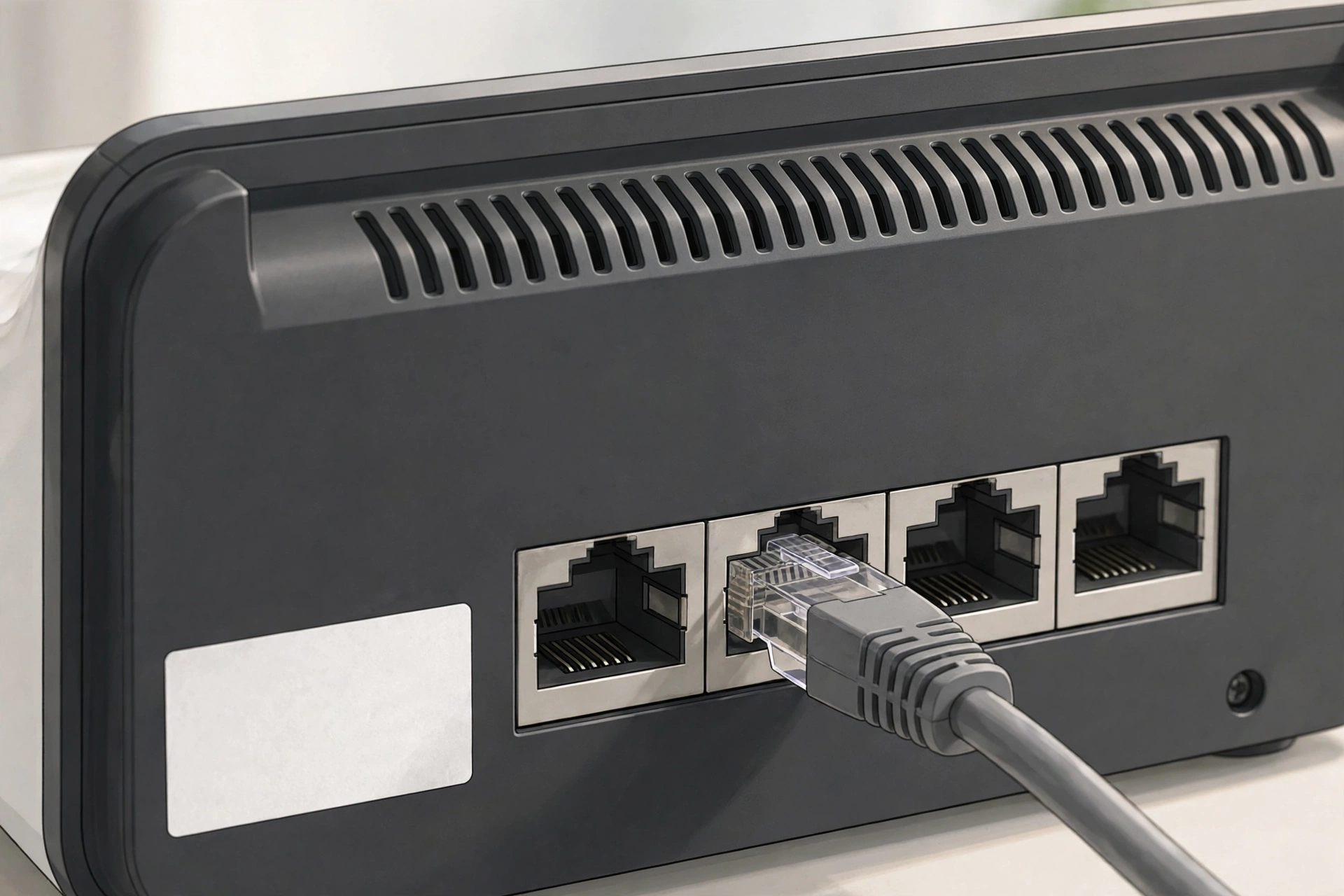
For the username and password, check the sticker on the bottom or back of the router first. Many routers ship with a unique admin password printed there. If the sticker is missing or the defaults were never changed, common factory pairs include admin/admin and admin/password — but try the sticker before guessing, and never leave a factory password in place once you are in.
Three Things Worth Doing Once You Are In
First, change the admin password to something only you know, and write it down somewhere safe. Whoever knows the admin password controls your whole network. Second, check the connected-devices list for anything you do not recognise — that is the fastest way to spot an unwanted guest. Third, if your Wi-Fi password is still the one printed on the router, change it to a strong passphrase; the printed password is only meant as a starting point.
If You Cannot Log In
If the password is lost and no one knows it, the last resort is a factory reset: press and hold the small reset button on the router (usually a pinhole) for about ten seconds until the lights blink. This restores the factory login, but it also wipes your Wi-Fi name, password, and any custom settings, so you will need to set the network up again. Only reset if you are prepared to reconfigure everything — and check with your internet provider first if the router was supplied by them, since some provider settings need their help to restore.
Finding the gateway address is a small skill, but it unlocks nearly every other home-network task. Once you have logged in once, bookmark the address in your browser — next time, it is a single click away.